
TLauncher
BEST MINECRAFT LAUNCHER
TLauncher is a Minecraft launcher for managing and starting Minecraft on a computer. It lets players choose a game version, change supported settings, and start a selected setup. It can also work with mods, skins, Java settings, and multiplayer configurations.
Servers • Shaders • Maps • Game Versions • Mods • Skins
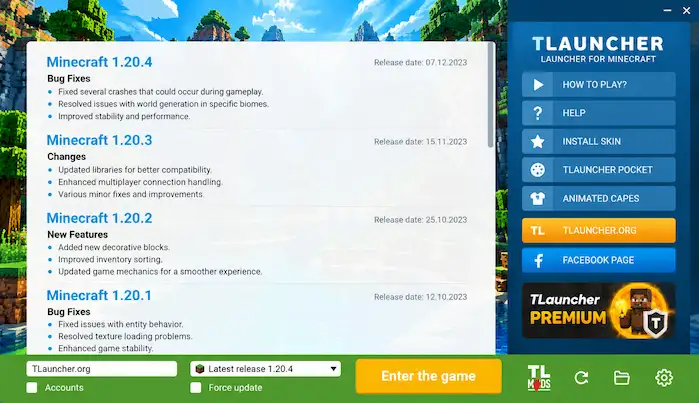
TLauncher is a Minecraft launcher for managing and starting Minecraft on a computer. It lets players choose a game version, change supported settings, and start a selected setup. It can also work with mods, skins, Java settings, and multiplayer configurations. The exact features depend on the Minecraft version and the computer being used.
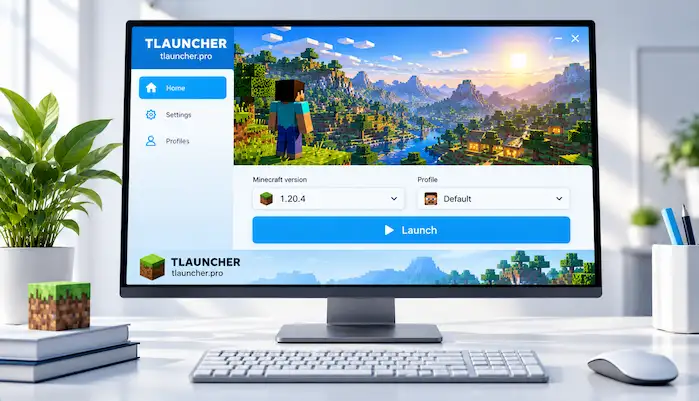
What Is TLauncher?
TLauncher Minecraft is a third-party launcher for Minecraft. It helps prepare the game before it starts. Users can choose a Minecraft version and set up the game from one place. The launcher is not Minecraft itself. Minecraft is the game, while the launcher helps start and manage the selected game setup.
TLauncher as a Minecraft Launcher
A Minecraft launcher prepares the game for use. It can select the game files, apply settings, and start the chosen version. This can help players who use more than one Minecraft setup. Each setup can have its own version, mods, and settings.
What Can You Do With TLauncher?
The program can help users select Minecraft versions and manage supported game settings. It can also work with mods, mod loaders, skins, Java, and multiplayer setups. Not every feature works with every Minecraft version. Users should check the requirements before changing their setup.
TLauncher vs Minecraft
Minecraft and the launcher have different jobs. Minecraft is the game. The launcher prepares and starts the game. This difference matters when fixing problems. A Java error may stop Minecraft from starting. A broken mod can cause a crash. These issues may not come from the launcher itself.
How Does TLauncher Work?
The launcher prepares Minecraft based on the options chosen by the user. First, the player selects a game version. The program then uses the files linked to that version. It also uses the chosen settings and Java setup. Minecraft starts after the required files are ready.
Choosing a Minecraft Version
Minecraft has many versions. Each one can have different features and system needs. Mods and servers may also support only certain releases. Players should choose the version that matches their world, mod, or server.
Configuring a Game Installation
Users can change supported settings before starting the game. These settings can include memory and other launcher options. A simple setup is easier to check when something goes wrong. If a problem starts after a setting change, undo that change first.
Java and Runtime Settings
Minecraft Java Edition uses Java to run. The required Java version can depend on the Minecraft release. An incorrect Java setup can cause startup errors or crashes. Players should check the Java needs of the version they want to use.
Launching Minecraft
After the setup is ready, the launcher starts Minecraft. The game then loads the selected files. A failed launch can have many causes. Damaged files, Java issues, bad mods, wrong settings, and security tools can all affect startup.
Managing Mods and Customizations
The program can work with supported Minecraft mods and custom setups. Mods can add new content or change the game. Most mods need a certain Minecraft version and mod loader. Players should check these details before installing a mod.
TLauncher Features
The launcher provides tools for managing a Minecraft setup. These tools can include version selection, mod support, Java settings, memory controls, skins, and multiplayer options. The available tools depend on the game version and computer.
Minecraft Version Selection
Version selection lets players choose the Minecraft release they want to use. This helps when different worlds or mods need different versions. It also helps keep separate game setups organized. Players should check the required version before making a change.
Mods and Modpacks
Mods can add blocks, items, creatures, graphics, and other features. A modpack combines several mods into one setup. This can save time when building a large custom game. However, every part of the pack must match the required Minecraft version.
Forge, Fabric, and OptiFine
Forge and Fabric are mod loaders. Many Minecraft mods use one of them. A Forge mod does not always work with Fabric. OptiFine adds extra video and graphics options. Compatibility depends on the Minecraft version and other installed files.
TLauncher Skin System
The skin system can let supported users change their Minecraft character. Skin support can depend on the account, game version, and server. A skin may work in one setup but not another. This does not always mean that the skin file is broken.
Java and Memory Settings
Memory settings control how much RAM Minecraft can use. A large modpack may need more RAM than a basic game. Giving the game too much memory is not always helpful. Windows and other programs also need RAM.
Multiplayer Support
Minecraft multiplayer depends on the server and game setup. The Minecraft version must often match the server. Network access, account settings, mods, and server rules can also matter. The launcher cannot make an incompatible server work.
Launcher Configuration
Configuration options give users more control over their game. Simple settings are easier to check when problems occur. If the game stops working after a change, return to the previous setting. Then test the game again.
TLauncher Minecraft Versions
Minecraft versions can differ in features, files, Java needs, mods, and server support. Players should choose a version based on what they want to do. A newer version is not always the right choice. An older world or mod may need a specific release.
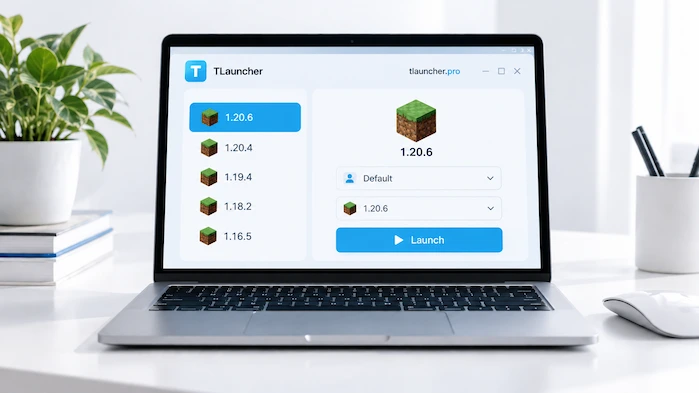
Minecraft Version Selection
The selected version controls the game environment. A mod may need one release, while a server may need another. Players should check these requirements before starting the game. This can prevent many errors.
Older Minecraft Versions
Older releases can still be useful. Some players need them for older worlds or mods. Older versions can have different Java needs. They may also lack support for newer mods and servers.
Minecraft Snapshots
Snapshots are test versions of Minecraft. They can include new features before a stable release. They can also contain bugs. Mods and servers made for stable releases may not work with a snapshot.
Version Compatibility
Compatibility means that the parts of a game setup can work together. The Minecraft version, Java, mod loader, mods, and server may all have their own needs. A mismatch can cause crashes or loading errors.
Why Minecraft Version Matters
Using the correct version can prevent many problems. It can also protect compatibility with worlds and mods. Check the required version before changing an existing setup. This is useful for both single-player and multiplayer games.
TLauncher for PC and Windows
The launcher is mainly used with desktop Minecraft setups. A computer gives users more control over Java, memory, files, and mods. System needs depend on the Minecraft version and the content installed. A simple setup usually needs fewer resources than a large modpack.
TLauncher for PC
A PC can run many Minecraft setups. Performance depends on the processor, graphics hardware, RAM, and storage. Large modpacks can use more resources. High graphics settings can also increase the load on the computer.
TLauncher for Windows
Windows is a common platform for Minecraft Java Edition. Installation problems can come from permissions, security software, Java, or damaged files. If the launcher opens but Minecraft does not, check the game version and Java setup.
TLauncher System Requirements
System needs depend on the game setup. RAM, storage, processor speed, and graphics hardware all matter. A basic game needs fewer resources than a large modpack. Leave enough RAM for Windows and other programs.
TLauncher on macOS
Mac users should check the requirements for their macOS version. Java needs can also differ between Minecraft releases. If the game does not start, check Java, permissions, the selected version, and installed mods.
TLauncher Download and Installation
A safe installation starts with a trusted source. Users should check the website address before downloading. Some websites use similar names and designs to look genuine. The source should be checked before the installer is opened.
TLauncher Download
The download should match the user’s operating system. Users should avoid random mirrors when the source cannot be checked. A file name alone does not prove that an installer is safe. Always check where the file came from.
TLauncher Installer
The installer adds the required program files to the computer. The process can differ by operating system. If installation fails, check storage space, permissions, security settings, and the downloaded file.
How to Install TLauncher
First, start with the correct installer. Then, open it and follow the instructions on screen. After the installation is complete, open the program and choose a Minecraft version. Next, select a version that matches the world, mod, or server you plan to use.
TLauncher Installation Requirements
Requirements depend on the operating system and Minecraft version. First, the computer needs enough storage for the launcher and game files. In addition, Java may also be needed. Furthermore, mods and modpacks can increase storage and RAM needs.
TLauncher Download and Installation Safety
Avoid modified installers and unknown executable files. Keep the operating system and security tools updated. Do not enter account details on an unknown website. These steps can reduce common software risks.
If you are ready to install the launcher, follow our TLauncher Download guide for the download and installation steps.
TLauncher Java
Java is an important part of Minecraft Java Edition. The required runtime depends on the Minecraft version. A Java problem can stop the game before it opens. Users should check Java when troubleshooting startup errors.
Why Does TLauncher Need Java?
Minecraft Java Edition uses Java to run. The launcher prepares the game and starts it with the needed runtime. If the required Java version is missing, Minecraft may not start.
Java Compatibility
Java compatibility depends on the Minecraft release. A Java setup that works for one version may not work for another. Check the requirements for the exact version you want to use.
Java and Minecraft Versions
Different Minecraft releases can need different Java versions. This matters when switching between old and new releases. A change in Minecraft version may also require a change in Java.
Java and Mods
Mods can add more requirements to the game. Large modpacks can also need more memory. If a normal game works but a modded game does not, check Java, the mod loader, and the installed mods.
Java and Memory Settings
RAM controls how much memory Minecraft can use. A large modpack may need more RAM than a basic setup. Do not give Minecraft all available memory. Other programs also need RAM.
Common Java Problems
Common problems include launch errors, crashes, and runtime conflicts. Start by checking the Minecraft version. Then check its Java requirements. After that, review the launcher settings and installed mods.
TLauncher Mods and Modpacks
Minecraft mods can change many parts of the game. They can add new content, change gameplay, or improve graphics. Modded setups need more care because several files must work together.
For detailed instructions on installing and managing Minecraft modifications, see our TLauncher Mods guide.
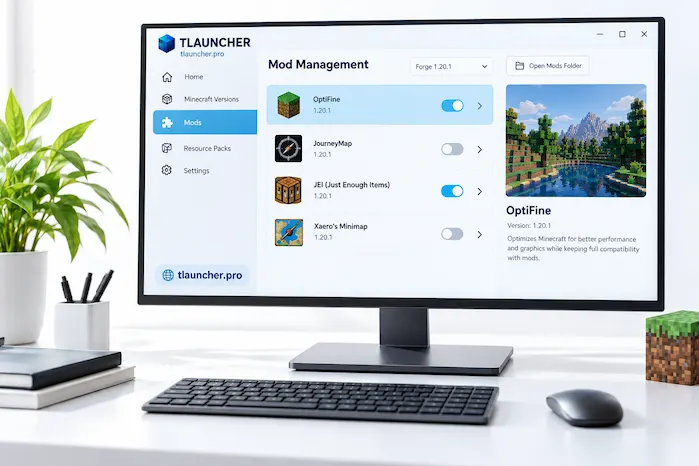
TLauncher Mods
A mod is an extra file that changes Minecraft. Each mod can have its own requirements. Check the Minecraft version and mod loader before installing one. This can prevent many crashes.
How TLauncher Mods Work
The launcher starts the selected game setup. The mod loader then loads the supported mods. The game must use compatible files. If the versions do not match, the game may fail to load.
TLauncher Modpack System
A modpack combines many mods into one setup. It can make a custom game easier to install. It can also create more chances for conflicts. One wrong file can stop the whole pack from working.
TLauncher Mods Folder Location
The mods folder is part of the Minecraft game directory. The correct folder can depend on the setup. If a mod does not appear, check the game directory first. A file in the wrong folder will not load.
Forge Mods
Forge mods need a compatible Forge version. They also need the correct Minecraft release. Check both before adding a mod. A version mismatch can cause a crash.
Fabric Mods
Fabric mods use the Fabric loader. They must match the required Minecraft version. A Fabric mod should not be placed in a Forge setup unless the mod supports that setup.
OptiFine
OptiFine adds extra video and graphics settings. It can help users change visual options. Compatibility depends on the Minecraft version and other mods. Check the requirements before installing it with other files.
Minecraft Version and Mod Compatibility
The Minecraft version is one of the first things to check before installing a mod. A mod made for one release may not work on another. The same applies to mod loaders and required libraries.
Common Mod Problems
Mod problems can cause crashes, missing features, and loading errors. If a problem starts after adding a mod, remove that mod first. Then test the game. Also check its version and required dependencies.
TLauncher Skins
Skins change the look of a Minecraft character. Their behavior can depend on the account, game version, server, and launcher setup. A skin may work in one environment but not another. Check the full setup before replacing the skin file.
How the TLauncher Skin System Works
The skin system connects the character appearance with a supported account or setup. Multiplayer servers can affect how skins appear. Some servers may use their own skin rules.
How to Use a Skin in TLauncher
Start with a compatible skin file. Then use the supported skin settings to select it. Restart the game if needed. After that, check the character in a supported environment.
Changing a Minecraft Skin
Changing a skin means selecting another supported character design. The new skin may not appear at once. If it does not show, check the account, game version, and server.
Why Is My Skin Not Showing in Minecraft TLauncher?
A missing skin can have several causes. The account may not support the selected skin system. The server may also handle skins in a different way. An incorrect file can cause problems too.
Common TLauncher Skin Problems
Players may see an old skin or no skin at all. The problem can come from the account, server, game version, or skin file. Testing the skin in another supported setup can help find the cause.
Skin and Account Requirements
Skin features can depend on the account being used. They can also depend on the server and game version. Check these requirements before changing the skin settings.
TLauncher Login and Accounts
Login connects the game setup with an account when authentication is needed. Account types can have different access rules. Users should keep their account information private and use trusted pages when entering credentials.
TLauncher Login
Login problems can come from wrong account details, network issues, or account restrictions. Check the account information first. Then check the internet connection. Reinstalling the launcher will not fix a wrong password.
TLauncher Accounts
The account and launcher have different jobs. The account handles authentication and access. The launcher manages the game setup. Knowing this difference can make login problems easier to understand.
Licensed Minecraft Accounts
A licensed Minecraft account provides access through the official Minecraft system. A third-party launcher does not replace game ownership. Users should follow the rules for their Minecraft edition.
Minecraft Account and Launcher Access
A working launcher does not always mean that an account will log in. An account can also work while the launcher has a local problem. These are separate issues.
Common TLauncher Login Problems
Check the account details first. Then check the internet connection and account status. Never give your password to someone who claims they can fix the problem.
Account Security
Use a strong password and keep it private. Avoid entering account details on unknown websites. If an account shows unusual activity, use the official account security tools.
TLauncher Servers and Multiplayer
Minecraft servers let players share online worlds. In addition, each server can have its own rules, game modes, versions, and connection settings. Therefore, players need a compatible game setup before joining.
TLauncher Minecraft Servers
A Minecraft server is a separate online game environment. For example, it can use custom maps, plugins, mods, or game modes. Before connecting, players should read the server requirements.
How Server Compatibility Works
Server compatibility often depends on the Minecraft version. While some servers support several releases, others require one exact version. Furthermore, modded servers can have additional requirements.
TLauncher Server Address and IP
A server address tells Minecraft where to connect. For instance, it can be a domain or an IP address. In some cases, servers also need a port. Therefore, use the connection details provided by the server owner.
TLauncher SMP Servers
SMP means Survival Multiplayer. In this mode, players share a world and play together. However, each SMP server can have different rules, mods, plugins, and game versions.
TLauncher BedWars Servers
BedWars is a Minecraft multiplayer mode. In this mode, teams protect their beds and fight other teams. However, access depends on the server. Therefore, players need the correct Minecraft version and connection settings.
Minecraft Version and Server Compatibility
The player’s game version should match the server requirements. Otherwise, an incorrect version can cause a connection error. For this reason, check the server information before changing the game setup.
Mods and Server Compatibility
Some servers need specific mods or modpacks. On the other hand, other servers may block certain modifications. Therefore, players should follow the server rules before using mods in multiplayer.
Common TLauncher Server Problems
Connection problems can come from a wrong address, incorrect game version, network issues, server downtime, or incompatible mods. First, check the server information. Then, test the connection with a basic setup.
TLauncher for Android and Mobile
Android and desktop Minecraft use different systems. A Windows Java launcher should not be assumed to work on Android. Mobile searches can also show apps with similar names. Users should check the exact software before installing an APK.
TLauncher for Android
Android support depends on the exact application. Therefore, check the developer, package details, permissions, and device requirements. In addition, an Android app with a similar name is not automatically the same software.
TLauncher Mobile
Mobile Minecraft uses a different environment from Java Edition on a computer. As a result, file paths, controls, game editions, and installation methods can differ. Therefore, desktop instructions may not work on a phone.
How to Download TLauncher on Mobile
Check the APK source before installing it. Verify the developer and requested permissions. Avoid unknown download pages when the source cannot be checked. A familiar app name does not prove that an APK is genuine.
TLauncher on iPad
iPadOS does not use Android APK files. A Windows installer also cannot be installed directly on an iPad. Users should check whether a compatible iPad application exists.
TLauncher PE
The term “TLauncher PE” can appear in mobile Minecraft searches. It may refer to different software or older names. Users should check the exact app and developer before installing it.
Mobile Compatibility
Mobile support depends on the device, operating system, Minecraft edition, storage, and app requirements. A desktop Java launcher should not be treated as a mobile app unless the developer supports it.
Desktop TLauncher vs Mobile Minecraft Launchers
Desktop and mobile Minecraft use different systems. Java Edition on a computer has its own runtime needs. Mobile Minecraft follows different platform rules. Mods, files, controls, and installation methods can therefore differ.
Mobile Installation and Security Considerations
APK files need care. Install them only from sources you can check. Review the permissions before installation. An app that asks for unrelated access should be treated with caution.
Is TLauncher Safe?
Safety depends on several factors. These include the source, file, software version, permissions, account use, and computer. A file from an unknown website may not be the same as a file from a trusted source.
Is TLauncher Safe to Use?
Check the source before installing the program. Keep security software active. Avoid modified installers and unknown files. These steps are useful for any third-party software.
Is TLauncher a Virus?
A launcher is not the same as a computer virus. A security warning also does not always explain the exact cause. It may involve a modified file, bundled software, suspicious behavior, or a false positive. Check the specific file.
Does TLauncher Have a Virus?
Different websites may offer different files. The source therefore matters. Scan unfamiliar installers and review security warnings before opening them.
Is TLauncher Malware?
Malware is a broad term for harmful or unwanted software. A malware claim should relate to a specific file or action. Users should check the source and security results before making a conclusion.
Is TLauncher Spyware?
Spyware collects information or tracks activity without proper notice. A spyware claim needs evidence. Users can review permissions and security reports when checking a concern.
TLauncher Malware Risks
Unverified download sites can create risks. Fake pages may use familiar branding. Modified installers can also contain unwanted software. Checking the source can reduce these risks.
TLauncher Security Risks
Security risks can involve more than the installer. Account passwords, unsafe mods, unknown files, and outdated software can also create problems. Keep account details private and avoid files you cannot verify.
TLauncher Official Site and Safety
Check the exact website address before downloading. Similar domains can make unofficial websites look real. A website using the same name does not automatically prove that it is official.
Is TLauncher Safe for PC?
Safety depends on the exact file and source. Keep Windows and security tools updated. Avoid unknown installers and check unfamiliar files before opening them.
Is TLauncher Safe for Mac?
Mac users should check the application source before installing. Read security warnings instead of ignoring them. Avoid modified application files from unknown websites.
Is TLauncher Safe in 2026?
Software and download sources can change. An old safety report may not describe a current file. Users should check the exact version and source they plan to use.
How to Reduce Security Risks When Installing a Launcher
Use a source you can verify. Scan unfamiliar files. Keep security tools active. Do not share account passwords. Avoid installers that request unusual permissions.
TLauncher Alternatives
Minecraft users have several launcher choices. However, each one has a different design and workflow. For example, some focus on official game access, while others focus on separate instances, mods, or custom setups. Therefore, players should compare the features they need.
Official Minecraft Launcher
The official Minecraft Launcher connects with the official Minecraft system. In addition, it supports the relevant account and game services. As a result, it can be useful for players who prefer official software.
Prism Launcher
Prism Launcher focuses on separate Minecraft instances. As a result, this can help users keep different game setups apart. Furthermore, it can be useful for both modded and unmodded installations.
MultiMC
MultiMC also uses separate instances. For example, each instance can have its own files and settings. This approach can help users keep different Minecraft configurations organized.
Lunar Client
Lunar Client is an integrated Minecraft client with extra features. Unlike a general launcher, its approach focuses on an integrated client experience. Before switching, users should check its current requirements.
GDLauncher
GDLauncher provides tools for managing Minecraft installations and modded setups. However, its features differ from other options. Therefore, users should compare the tools they need before making a change.
Comparing Minecraft Launchers
Launchers can differ in account support, version management, mod tools, and instance control. For this reason, users should compare these features based on their own setup. Ultimately, the same launcher may not suit every type of player.
TLauncher Troubleshooting
Minecraft problems can come from many parts of the setup. The launcher is only one possible cause. Java, mods, game files, accounts, servers, network settings, and security tools can also cause errors.
TLauncher Won’t Open
Check whether the installation finished correctly. Then check if security software blocked a file. Restart the computer and try again. If the issue continues, look for an error message.
TLauncher Download Problems
A download may fail because of the browser, network, website, or security software. Check the source before trying again. Avoid random download buttons on unfamiliar pages.
TLauncher Installation Problems
Installation can fail because of low storage, missing permissions, damaged files, or system limits. Check the installer and make sure it matches the operating system. Security software can also block a file.
Minecraft Launch Errors
Launch errors can come from Java, mods, memory, damaged files, or version conflicts. Read the error message first. It may show which part of the setup needs attention.
TLauncher Java Problems
Check the Java needs of the selected Minecraft version. If one version works and another fails, compare their Java requirements. This can reveal a runtime problem.
TLauncher Mod Problems
Check the Minecraft version, mod loader, mod version, and dependencies. If the problem started after adding a mod, remove it and test the game again.
TLauncher Login Problems
Check the account details and internet connection. Also check the account service. Never give your password to another person for troubleshooting.
TLauncher Server Problems
Check the server address and Minecraft version. Then check whether the server is online. If the server needs mods, make sure the client uses the required files.
TLauncher Skin Problems
Check the skin file, account, game version, and server. Some servers handle skins differently. Testing the skin in another supported setup can help.
TLauncher Performance Problems
Performance depends on the computer, game settings, Java, mods, resource packs, and background programs. Lower demanding graphics settings if needed. Removing unused mods can also reduce the load.
Is TLauncher Down?
A local problem can look like a wider service problem. Check the internet connection and the exact feature that fails. If only one part does not work, the whole launcher may still be available.
TLauncher Version Information
Launcher versions and Minecraft versions are separate. A new Minecraft release does not always mean that the launcher has a new version. When troubleshooting, record both version numbers.
Current TLauncher Version
Current version details can change. Users who need an exact version should check the relevant source. Avoid using an old article as the only source for current version information.
Older TLauncher Versions
Older builds can be useful for certain setups. They can also have old requirements and compatibility limits. Use an older build only when there is a clear reason.
TLauncher Version History
Version history can help explain changes between builds. It can also help users recreate an older setup. Record both the launcher and Minecraft version when keeping notes.
TLauncher Advantages and Limitations
The launcher can make version management easier for some players. It can also provide tools for supported mods, settings, and custom game setups. However, users still need to understand compatibility and security.
TLauncher Features Users May Find Useful
Version selection helps users work with different Minecraft releases. Mod support can help with custom game setups. Java and memory settings also give users more control over the game environment.
TLauncher Limitations and Considerations
Different versions can create compatibility problems. Mods, modpacks, Java, and servers may all have their own requirements. Users should also verify software sources and protect their account details.
Frequently Asked Questions
What Is TLauncher?
TLauncher is a third-party Minecraft launcher. It helps users manage and start Minecraft installations.
Is TLauncher Safe?
Safety depends on the exact file, source, version, and computer. Users should check the source before installing.
Is TLauncher a Virus?
A launcher is not the same as a virus. If a security tool gives a warning, check the exact file and reason for the warning.
Does TLauncher Have a Virus?
Different websites can offer different files. Users should check the source and scan unfamiliar installers before opening them.
What Is TLauncher Minecraft?
The phrase usually means using the launcher to manage and start Minecraft. The launcher and game are separate pieces of software.
What Is TLauncher Login?
It is the account authentication process used with the relevant Minecraft setup. Available options depend on the account and software.
What Are TLauncher Skins?
They are Minecraft character skins used with supported launcher and account setups. Their appearance can depend on the server and game version.
How Do You Use a Skin in TLauncher?
Select a compatible skin through the supported skin settings. The exact process can depend on the account and setup.
What Are TLauncher Servers?
They are Minecraft multiplayer servers that users can access with a compatible game setup. Each server can have different requirements.
What Is a TLauncher Server IP?
It is the address used to connect to a Minecraft server. The server owner provides the address and port when needed.
What Are TLauncher SMP Servers?
They are Survival Multiplayer servers. Players share a world and play with others.
Can TLauncher Play BedWars?
BedWars depends on the server. Players need a compatible Minecraft version and connection setup.
What Are TLauncher Alternatives?
Alternatives include the official Minecraft Launcher, Prism Launcher, MultiMC, Lunar Client, and GDLauncher. Each has different features.
Is TLauncher Available for Android?
Android support depends on the exact application. Users should check the developer, source, permissions, and device support.
Can TLauncher Be Used on Mac?
Mac support depends on the software build, macOS version, Java setup, and Minecraft configuration.
Conclusion
TLauncher is a Minecraft launcher that helps players manage game versions and start Minecraft on a computer. It can also work with supported mods, skins, Java settings, and multiplayer setups. The available features depend on the Minecraft version and computer. Players should check compatibility before changing versions or installing mods. They should also use trusted software sources and keep account details private. When a problem appears, checking Java, game versions, mods, server settings, and system resources can help find the cause. A simple and compatible setup is often easier to manage and troubleshoot.