TLauncher Download

TLauncher Download is focused on getting the Minecraft launcher onto your computer and preparing it for use. This page explains how to choose the right installer, check your system, install the program, select a Minecraft version, and solve common download or installation problems. It also covers basic safety steps so you can check a file before opening it.
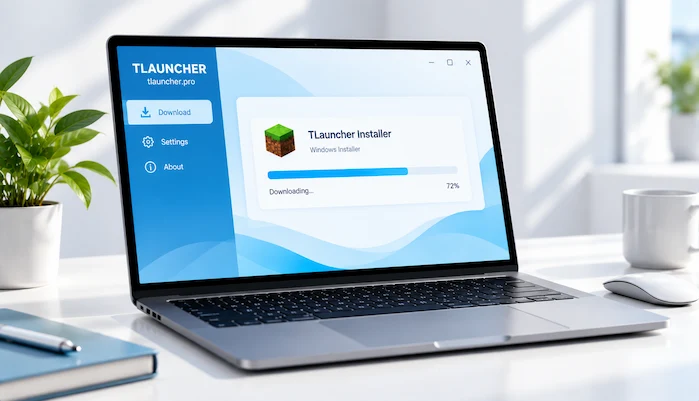
TLauncher Download
The download process starts with choosing the correct launcher file for your operating system. Before downloading, check the source and make sure the file matches your computer. Avoid pages with several confusing download buttons or files from unknown sources. A correct installer should come from a source you can verify. The size and requirements of a download can vary between software builds. For this reason, users should check the information shown on the download source before starting the process. Do not rely on old file details from another website.
For a complete overview of the launcher and its main features, visit our TLauncher guide
How to Download TLauncher
Downloading the launcher is a simple process when the correct installer is selected. First, open the download source and check the website address. Next, find the installer that matches your operating system. Start the download and wait until the file is complete before opening it. Do not open several installers from different websites. This can make it harder to know which file you are using. One verified installer is easier to check and manage.
Choose the Correct Installer
The installer should match your operating system. Windows users need a Windows-compatible file, while Mac users need a compatible macOS build. Do not try to use a Windows installer on a Mac or another unsupported platform. The Minecraft version you plan to use does not usually determine the operating system installer. Instead, it affects the game setup after the launcher is installed.
Check the Download Source
The source is an important part of any software download. Check the domain name before clicking the download button. Be careful with pages that use copied branding, unusual pop-ups, or several fake-looking download controls. A familiar name does not always mean that a website is trustworthy. Check the source before running an executable file.
Save the Installer
Most browsers save downloaded files in the Downloads folder by default. You can also choose another folder if you want to keep the installer in a specific location. Remember where the file was saved. This makes it easier to find the installer after the download finishes.
TLauncher Download for Windows
Windows users should choose a compatible Windows installer. Before starting the installation, make sure the computer has enough free storage and that the downloaded file is complete. Windows may display a security message when an application is downloaded from the internet. Do not ignore such warnings without checking them. Read the message and confirm that you understand which file you are opening.
Windows Installation Steps
Open the downloaded installer after checking its source. Follow the instructions shown by the setup program. Choose the installation options that fit your needs and allow the process to finish. After installation, open the launcher and review the available Minecraft settings. You can then choose a suitable game version before starting Minecraft.
Windows Permissions
Some installations may require permission from Windows. If a permission window appears, check which program is requesting access before continuing. If the installation fails, check your account permissions and security settings. Do not disable security features without understanding why they are blocking the file.
TLauncher Download for Mac
Mac users need a launcher build that supports their macOS environment. A Windows installer cannot be used as a normal Mac application. Before installation, check the macOS requirements and the source of the application. If macOS displays a security warning, review the message before deciding what to do.
Mac Installation Steps
Download the compatible application and locate it in the folder where your browser saves downloads. Open the application and follow the installation instructions provided by the software. After setup, start the launcher and check the Minecraft version options. If Minecraft does not start, Java and version compatibility may need to be checked.
TLauncher System Requirements
System requirements depend on the Minecraft version and the way the game is configured. A simple setup can use fewer resources than a large modpack with high graphics settings. RAM, processor performance, graphics hardware, and storage can all affect Minecraft. The launcher itself may need fewer resources than the game that it starts.
RAM Requirements
Minecraft uses system memory while running. The amount needed depends on the game version, mods, resource packs, and other settings. Do not give Minecraft all available RAM. Windows, macOS, and background applications also need memory. A balanced setting is usually more useful than assigning as much memory as possible.
Storage Requirements
The launcher needs storage for its own files and Minecraft needs additional space for game data. Worlds, mods, resource packs, and modpacks can increase storage use. Keep enough free space available before installing a large game setup. Low storage can cause downloads or installations to fail.
Processor and Graphics
Minecraft performance depends on the processor and graphics hardware. A basic setup can place less demand on the computer than a large modpack or high graphics settings. If the game runs slowly after installation, lowering demanding settings can help. Performance also depends on the Minecraft version and installed modifications.
TLauncher Installation Guide
After the download finishes, the next step is installation. The process depends on the operating system, but the basic idea is the same. Open the correct installer, follow the setup instructions, and wait for the installation to finish. Do not install several versions at the same time unless you have a clear reason to do so. A clean installation can make later troubleshooting easier.
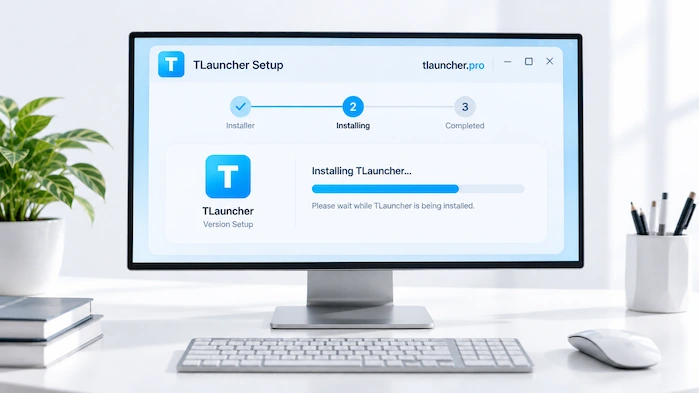
Step 1: Find the Installer
Open the folder where your browser saves downloaded files. Find the installer you downloaded. Check the file name and source before opening it. If you downloaded several files, remove any installers you do not recognize.
Step 2: Start the Installation
Open the correct installer and follow the instructions on screen. Read each option before moving to the next step. If the setup asks for permissions, check the program name before allowing access.
Step 3: Complete the Setup
Wait for the installation to finish. Do not close the installer while files are being copied. When the process ends, open the launcher. If it does not start, check the error message instead of downloading another copy immediately.
Step 4: Choose a Minecraft Version
After installation, select the Minecraft version you want to use. The correct choice depends on your world, mod, modpack, or server. A mod made for one version may not work with another. The same rule applies to many multiplayer servers.
Step 5: Start Minecraft
Once the game version and settings are ready, start Minecraft from the launcher. The first start may take longer while files are prepared. If the game fails to open, check Java, memory settings, game files, and installed modifications.
TLauncher Java Requirements
Minecraft Java Edition uses Java to run the game. The Java version needed can depend on the Minecraft release. If you change Minecraft versions, check whether the Java requirement also changes. Using the wrong runtime can cause startup problems.
Why Java Matters
Java provides the environment needed to run Minecraft Java Edition. The launcher uses that environment when starting the game. A Java problem can appear as a launch error, crash, or failed startup. Checking Java is therefore an important troubleshooting step.
Java and Minecraft Versions
Different Minecraft releases can use different Java requirements. Newer releases may not have the same requirements as older ones. When changing versions, check the runtime used by the new setup. Do not assume that one Java version works with every Minecraft release.
TLauncher Download Safety
Software safety starts before installation. Check the download source, file type, and website address before opening an installer. Avoid modified files from unknown websites. Do not trust a download only because the page uses familiar Minecraft or launcher branding.
Check the File Source
Look at the domain before downloading. Check that the page belongs to the source you intended to visit. Be careful with websites that show several large download buttons. Some may lead to unrelated files or advertisements.
Scan the Installer
A security tool can check a downloaded file for known threats. Scan an unfamiliar installer before opening it if you have any concerns. A warning should not be ignored. Read the security message and check which file caused it.
Avoid Modified Installers
Modified installers can contain extra software. They may also change how the program behaves. Use a source you can verify and avoid files that have been repackaged by unknown websites.
TLauncher Download Problems
A download can fail for several reasons. The browser, internet connection, website, storage, or security software may cause the problem. Before trying many different files, identify where the process stops. This makes troubleshooting easier.
TLauncher Download Does Not Start
Check the internet connection first. Then refresh the page and try again from the same trusted source. If the browser blocks the file, read the warning before continuing. Do not bypass a warning without understanding it.
TLauncher Download Stops Partway
An unstable connection can interrupt a download. Low storage can also cause problems. Check your connection and available storage. Then start the download again if needed.
TLauncher Download File Will Not Open
A damaged or incomplete file may not open correctly. The wrong installer for your operating system can cause the same problem. Check the file source and download it again from a verified location if necessary.
TLauncher Installation Problems
Installation errors can come from several sources. Common causes include low storage, missing permissions, security software, damaged installers, and operating system restrictions. Check the basic requirements before making major system changes.
Installer Stops
If the installer stops during setup, check the available storage and permissions. Security software may also be blocking a file. Read any error message shown by the installer. The message can point to the part that needs attention.
Launcher Does Not Start
If the installation finishes but the program does not open, restart the computer and try again. If the problem continues, check security software and the system requirements. A damaged installation may also need to be removed and installed again from a verified source.
Minecraft Does Not Start
A launcher that opens does not guarantee that Minecraft will start. The game has its own requirements. Check the selected Minecraft version, Java environment, memory settings, and installed mods. These are common areas to review after a failed launch.
TLauncher Mods After Installation
Mods can be added after the basic game setup works. It is better to test a clean Minecraft installation before adding several modifications. This makes it easier to identify the source of a problem later.
Check Mod Compatibility
Every mod should match the Minecraft version it supports. Some mods also need Forge or Fabric. Read the requirements before adding a mod. Do not assume that a mod works with every release.
Add Mods Carefully
Install a small number of mods at a time. Start the game after each change when possible. If the game stops working, you will know which recent change may have caused the problem.
Modpack Installation
A modpack can contain many files. Check its Minecraft version and loader before using it. Large packs may also need more RAM and storage than a basic installation. Make sure the computer can handle the setup.
After installation, our TLauncher Mods guide explains how to add mods and manage compatible setups.
TLauncher Version Selection After Download
Installing the launcher does not mean that every Minecraft version should be used together. Each game release has its own requirements. Choose the version based on what you plan to play.
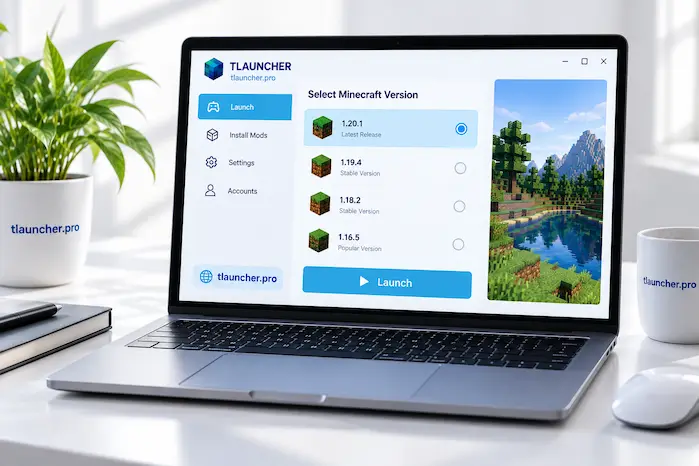
Version for Mods
If you plan to use mods, start with the version required by those mods. Then choose the correct loader. This reduces compatibility problems and can make installation easier.
Version for Servers
Check the server’s required Minecraft version before connecting. Some servers support several releases, while others use one specific version. Using the wrong version can cause a connection error.
Version for Existing Worlds
An existing world may have been created with a specific Minecraft release. Before opening it in another version, check compatibility. Keeping a backup of important worlds is also a useful precaution before making major version changes.
TLauncher Download and Login
Some Minecraft setups require account authentication. The login process depends on the account and software environment being used. Users should keep their account details private and enter them only on pages or software they trust.
Protect Your Account
Never share your password with someone offering installation or troubleshooting help. Use a strong password and keep account recovery information secure. If you notice unusual activity, use the official account security tools.
Login Problems
A login failure can come from incorrect credentials, network problems, account restrictions, or authentication issues. Check the account details first. Then check the connection and account status before changing the entire installation.
TLauncher Download for Multiplayer
After installation, players can prepare a Minecraft setup for multiplayer. The required version depends on the server. Mods may also affect access. Some servers require specific files, while others do not allow certain modifications.
Check Server Requirements
Read the server information before connecting. Check the Minecraft version, address, port, mods, and account requirements. Following the server instructions can prevent many connection problems.
Server Connection Errors
A connection error can come from the wrong address, wrong version, network problems, server downtime, or incompatible mods. Test the connection with a basic compatible setup. If it still fails, check the server status and connection details.
Is TLauncher Download Safe?
The safety of a download depends on the exact file and source. A third-party website may distribute a modified or unwanted file. Users should verify the source before installation and scan unfamiliar files when needed.
Is TLauncher a Virus?
A launcher is not the same thing as a computer virus. If a security tool reports a problem, check the exact file and the reason for the warning. Do not assume that every file with the same name is identical.
TLauncher Malware Risks
Unknown download sites can expose users to modified installers, unwanted programs, or fake download buttons. Using a source that can be verified reduces these risks. Keeping security software active also provides another layer of protection.
TLauncher Download on Mac
Mac users should use a compatible macOS application. Windows installers are not designed for normal Mac installation. Check the macOS requirements before starting. If the system blocks the application, read the security message and confirm the source.
Mac Java Setup
Minecraft Java Edition still needs a suitable Java environment. The required version depends on the Minecraft release. If the launcher opens but Minecraft fails, check Java and the selected game version.
TLauncher Download on Mobile
Desktop and mobile Minecraft use different systems. A Windows or macOS installer should not be used on a phone. Users searching for Android or iOS versions should verify the exact application before installing anything.
Android APK Checks
Before installing an APK, check the developer, source, permissions, and device support. Avoid unknown files when the source cannot be verified. A familiar name does not prove that an APK is genuine.
iPhone and iPad
Android APK files cannot be installed on iPhone or iPad. Apple devices use a different application system. Users looking for a mobile version should check whether the software supports their specific Apple device.
FAQs
How Do I Download TLauncher?
Choose a compatible installer from a source you can verify. Download the file, check it, and then open the installer.
Where Is TLauncher Downloaded?
Most browsers save downloaded files in the Downloads folder. The exact location depends on your browser settings.
Is TLauncher Download Safe?
Safety depends on the file and source. Check the website and scan unfamiliar installers before opening them.
Can I Download TLauncher on Windows?
A compatible Windows build can be used on supported Windows systems. Check the system requirements before installation.
Can I Download TLauncher on Mac?
Mac users need a compatible macOS build. Check the current requirements before installing.
Can I Download TLauncher on Android?
Android support depends on the exact application. Verify the developer and source before installing an APK.
How Do I Install TLauncher?
Open the compatible installer and follow the setup instructions. After installation, choose a Minecraft version and start the game.
Why Is TLauncher Not Installing?
Possible causes include low storage, permissions, security software, a damaged installer, or system restrictions. Check the error message first.
Why Is TLauncher Not Opening?
Check the installation, security software, and system requirements. Restart the computer and try again.
Why Is Minecraft Not Starting?
Check the Minecraft version, Java setup, memory settings, game files, and mods. One of these parts may be incompatible.
Conclusion
TLauncher Download is the starting point for users who want to install and set up the Minecraft launcher on a supported computer. The process involves choosing the correct installer, checking the system, completing the installation, selecting a Minecraft version, and preparing the game. Compatibility is important when using Java, mods, modpacks, and servers. Security also matters, so users should verify the download source and check unfamiliar files before opening them. A clean installation and compatible game setup can make Minecraft easier to start and manage.