
TLauncher Mods let Minecraft players add new content, tools, items, worlds, and game features. A mod can change one part of the game or add many new systems. The key is to use the right Minecraft version and mod loader. A mismatch can cause crashes or stop a mod from loading. This guide explains how to install mods, find the mods folder, use Forge and Fabric, manage modpacks, and fix common problems.
What Are TLauncher Mods?
TLauncher Mods are Minecraft files that change or add game content. Some mods add new blocks and items. Others improve graphics, add maps, change menus, or improve game performance. Mods work through a mod loader such as Forge or Fabric. The loader must match the Minecraft version and the mod. Before you install a file, check all three details. This simple check can prevent many errors.
How Do TLauncher Mods Work?
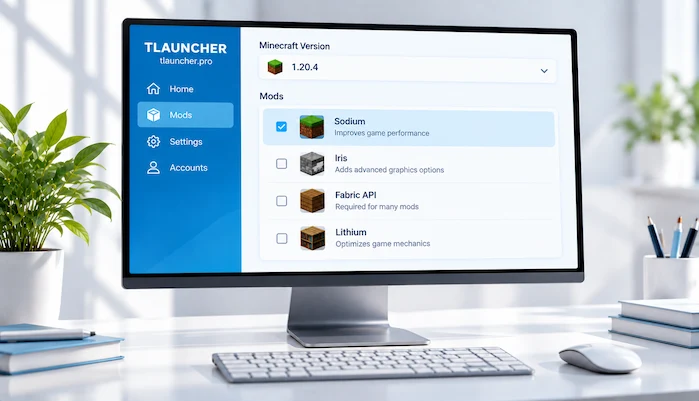
A setup with TLauncher Mods has several parts. First, you choose a Minecraft version. Next, you install the loader needed by the mod. Then, you place the mod file in the correct folder. When you start the game, the loader reads the files in that folder. If the files match the selected setup, the mod can load. Some mods also need extra files called dependencies. The mod page should list these files.
To understand the launcher and its main functions, see our TLauncher guide.
How to Install TLauncher Mods
Start by checking the Minecraft version needed by the TLauncher Mods file. Then check if the mod uses Forge or Fabric. Install the matching loader for that version. Next, download the mod file from a source you trust. Open the game folder and find the mods folder. Place the mod file inside it. Start the matching Minecraft setup. If the game opens without an error, check the game menu or mod list to confirm that the file loaded.
If you have not installed the launcher yet, follow our TLauncher Download guide for the installation steps.
TLauncher Mods Folder Location
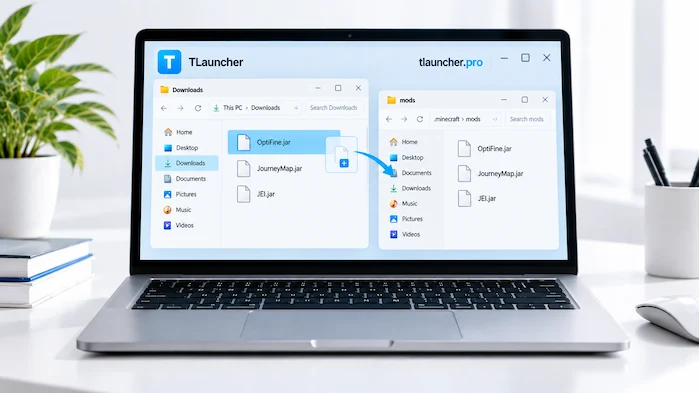
The TLauncher Mods folder is part of the Minecraft game directory. On a normal desktop setup, you will find a folder named mods inside the game directory. The exact path can differ by operating system and launcher settings. If you have more than one Minecraft setup, each one may use a different directory. Make sure you add the file to the folder used by the version you plan to start. A correct mod in the wrong folder will not load.
How to Find the Mods Folder
Open the game directory linked to your Minecraft setup. Look for a folder named mods. If it does not exist, check that the required mod loader is installed. Some setups create the folder after the loader runs for the first time. You can also check the launcher settings for the game directory. If you have several versions, confirm the path before moving files. This avoids placing a mod in an unused folder.
Forge Mods
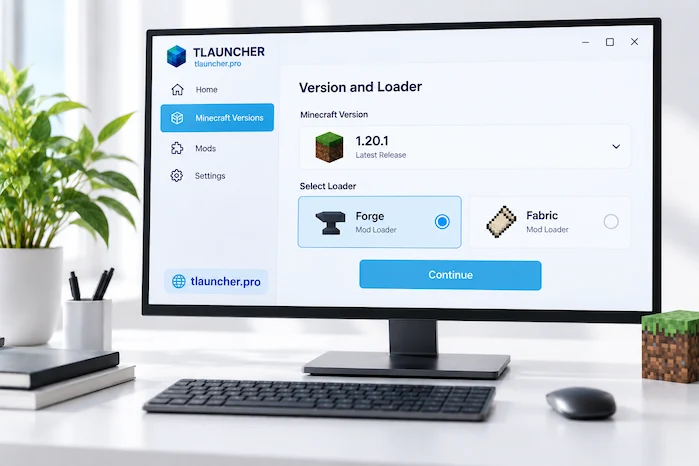
Forge is a popular mod loader for Minecraft. It gives compatible mods the system they need to run. Before using a Forge mod, check the Minecraft version and Forge version listed by the mod creator. These versions must work together. Some files also need extra libraries. If a Forge setup crashes, check the version first. Then check the required dependencies. Do not add random files to solve a loader error.
Fabric Mods
Fabric is another mod loader for Minecraft. It is used by many mods and can work with a range of game versions. A Fabric mod needs a matching Minecraft version and Fabric Loader. Some mods also need Fabric API. Read the requirements before moving a file into the mods folder. Forge and Fabric are different loaders. A Forge file will not always work in a Fabric setup, and the same rule applies in reverse.
OptiFine
OptiFine adds graphics settings and other options to compatible Minecraft versions. It can help users change visual settings and control some performance options. Its support depends on the Minecraft version in use. Other mods can also affect compatibility. If the game stops starting after you add OptiFine, remove the newest file and test the setup again. Check the version details before adding it back.
Modpack System
A modpack is a group of files made to work as one Minecraft setup. It can include mods, libraries, settings, and other game files. A pack may need a specific Minecraft version and loader. It can also need more memory than a small group of mods. Follow the pack instructions before adding or removing files. Do not mix files from different packs unless you know they are compatible.
Modpacks
Modpacks can change the way Minecraft feels and plays. Some focus on building. Others add machines, magic, exploration, quests, or new worlds. Each pack has its own requirements. Check the Minecraft version and loader before you start. If the pack includes a list of required files, keep that list intact. Adding extra files can cause a conflict. Back up important worlds before you test a large pack.
TLauncher Mods and Minecraft Version Compatibility
Version matching is one of the most important parts of modding. A file made for one Minecraft release may not work on another release. The same rule applies to Forge and Fabric. Check the game version shown on the mod page. Then check the loader version. Use the same setup in the launcher. If the versions do not match, choose a compatible file instead of forcing the mod to run.
For character customization, see our guide to TLauncher Skins and learn how Minecraft skin settings work.
Why Are Mods Not Working?
TLauncher Mods may fail for several simple reasons. The Minecraft version may be wrong. The loader may not match. A dependency may be missing. The file may be in the wrong folder. Two mods may also conflict. Start with the latest change you made. Check the game version, loader, folder, and required files. If the problem remains, remove the newest mod and start the game again. This can help you find the file that caused the error.
TLauncher Mods and Dependencies
Some mods need other files to run. These files are called dependencies. They can provide code or features used by the main mod. The mod page should show any required dependencies. Download the correct version for your Minecraft setup. A missing dependency can stop the game from starting or cause a clear error. Do not download a random file with a similar name. Use the dependency listed by the mod creator.
TLauncher Mods and Performance
TLauncher Mods can change game performance. A small mod may have little effect. A large pack can use more memory and processing power. World generation mods may also increase the work done by the game. If your frame rate drops after adding a file, compare the game before and after the change. Remove the newest mod and test again. You can also lower game settings or reduce the number of active mods.
TLauncher Mods and RAM Settings
Large modpacks may need more memory than a basic Minecraft setup. However, giving the game too much RAM is not always helpful. The operating system and other programs also need memory. Start with a reasonable amount based on your computer and the pack requirements. If the game shows memory errors, check the pack guide before making a large change. Close other programs when testing a heavy setup.
How to Remove TLauncher Mods
Close Minecraft before removing a file. Open the correct mods folder and remove the mod you no longer need. Start the same game setup and test it. If the world used content from that mod, removing it can change the world or cause missing items. Make a backup before removing major gameplay mods. For a full modpack, follow the pack guide instead of deleting files at random.
How to Update TLauncher Mods
Check the new file before replacing the old one. Make sure the update supports the same Minecraft version and loader. Back up important worlds first. Then replace the old file with the new one. Start the game and test the setup. If it fails, restore the old file and check the update notes. Do not update every mod at once when you are trying to find the cause of a problem.
Are Mods Safe?
Mods are software files, so you should treat them with care. Download them from sources you can verify. Avoid files from random pop-ups or unknown pages. Scan suspicious files with trusted security software. Do not disable your security tools just to install a mod. You should also avoid modified files that make unusual claims. A file can cause problems because it is unsafe or because it is simply broken. Both cases need care.
TLauncher Mods for Multiplayer
A mod can work in multiplayer when the server and client support the same setup. Some servers allow only the standard game. Others require a specific set of mods. A server may also require exact versions. Check the server rules before joining with a modded setup. If you see a connection error, compare the Minecraft version, loader, and required files on both sides. A mismatch can stop the connection.
TLauncher Mods and Minecraft Worlds
Mods can add blocks, items, mobs, structures, and world features. Removing one can affect a world that used its content. This is why backups matter. Make a copy of important worlds before you add or remove major files. When moving a world to another computer, check its mod list first. A world made with many mods may not work as expected in a setup with fewer files.
Common Problems
Common problems include crashes, missing files, loading errors, and poor performance. The best first step is to check what changed. Did you add a new mod? Did you change the Minecraft version? Was the loader changed? Did you remove a dependency? Answering these questions can narrow down the cause. Test one change at a time. This makes troubleshooting much easier.
Frequently Asked Questions
How do I install mods?
Choose a matching Minecraft version and loader. Then place the correct mod file in the mods folder and start the same game setup.
Where is the mods folder?
The folder is normally inside the Minecraft game directory. The exact location depends on your system and game settings.
Can I use Forge mods?
Yes, but the game version, Forge version, and mod must be compatible. Some files may also need extra dependencies.
Can I use Fabric mods?
Yes, when the game uses Fabric and the mod supports the selected Minecraft version. Some files also require Fabric API.
Can I use OptiFine?
OptiFine can work with compatible Minecraft versions. Check its version and test it with your other files before using it in a large setup.
Why are my mods not working?
Check the Minecraft version, loader, file location, and dependencies. A conflict between two mods can also cause an error.
Are mods safe?
Download mods from sources you can verify. Scan suspicious files and avoid unknown or modified downloads.
Can mods work on servers?
They can when the server and client use compatible versions and required files. Always check the server rules before joining.
Conclusion
Mods can add new content and change many parts of Minecraft. A stable setup starts with the correct Minecraft version, mod loader, and files. Keep mods in the right folder and check all required dependencies. Make backups before changing a large setup. If a problem appears, check the latest change first and test one file at a time. These steps can make mod installation easier and reduce common errors.