
TLauncher Skins let Minecraft players change the appearance of their character. A skin changes how a player looks in the game without changing the Minecraft world or gameplay rules. The skin system can depend on the launcher setup, account type, Minecraft version, and server. A skin may also fail to appear when the required settings are not active. This guide explains how skins work, how to change them, why a skin may not show, and how to fix common problems.
What Are TLauncher Skins?
TLauncher Skins are character designs used to change the look of a Minecraft player. A skin can change the character’s clothing, colors, face, and other visual details. It does not add new blocks, items, or gameplay features. Skins are mainly a visual part of Minecraft. The way a skin appears can depend on the account, launcher settings, game version, and server being used.
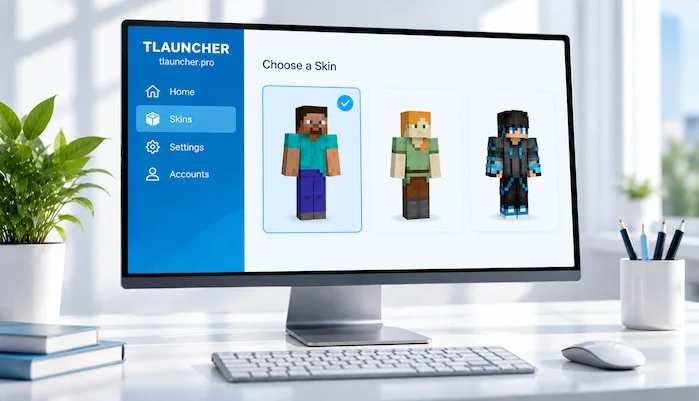
How Does the TLauncher Skin System Work?
The TLauncher skin system connects a selected character appearance with the Minecraft setup being used. When the required skin feature is active, the chosen design can appear on the player character. However, the result may differ between single-player and multiplayer. Server settings can also affect which skins other players can see. If a skin does not appear, check the selected skin, account settings, Minecraft version, and server conditions before changing other files.
For a broader overview of the launcher and its features, see our TLauncher guide.
How to Use Skin in TLauncher
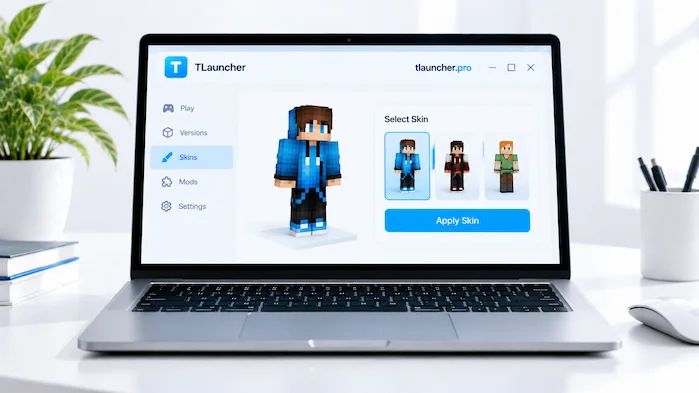
To use a skin in TLauncher, start by choosing a skin that matches the supported Minecraft character format. Open the skin settings available in your launcher setup and select the desired design. Save the change and start Minecraft. Check your character in the game to confirm the new appearance. If the old design still appears, close the game and launcher, then start them again. Also check that you are using the same account and game setup where the skin was selected.
How to Change Skin in TLauncher
Changing a skin normally requires opening the skin section of the launcher and selecting a different design. Make sure the new image uses a supported Minecraft skin format. After saving the change, start the matching Minecraft setup. You may need to restart the game before the new design appears. If the character still uses the old skin, check whether the launcher saved the change and whether the selected account supports the skin feature.
TLauncher Skins Minecraft Skin Requirements
A Minecraft skin should follow the format supported by the game and launcher. The image must use the correct layout so Minecraft can read the character model properly. Some skins also use different character models, such as classic or slim designs. Choosing the wrong model can make the skin look different from the original image. Check the skin requirements before uploading or selecting a file.
TLauncher Skin System and Minecraft Versions
The skin system can behave differently across Minecraft versions and launcher setups. A skin that works in one setup may not appear in another if the account or configuration changes. When testing a skin, use the same Minecraft version and account each time. This makes it easier to find the cause of a problem. If you recently changed versions, check the skin settings again before assuming that the skin file is broken.
Why Is My Skin Not Showing in Minecraft TLauncher?
Why is my skin not showing in Minecraft TLauncher can have several answers. The selected skin may not have been saved. The launcher may be using another account or profile. The skin image may not match the required format. A server may also use settings that affect custom skins. Start by checking the skin selection and account. Then restart the launcher and game. If the problem continues, test the same skin in another compatible setup.
TLauncher Skins Not Working
TLauncher skins not working can result from an incorrect image format, account settings, connection problems, or a launcher configuration issue. Check that the skin file is valid and that the correct profile is active. Restart the launcher after saving changes. If the skin works in one world but not on a server, the server may be handling player skins in a different way. This can help identify whether the problem is local or related to multiplayer.
TLauncher Skins Not Showing After Changing It
A new skin may take time to appear after you change it. Start by closing Minecraft and reopening it. Then check the active account and skin settings. Make sure the selected design is still saved. If the old skin appears again, select the new design once more and restart the launcher. You should also check whether the game is using a different profile from the one where you changed the skin.
TLauncher Skin and Account Settings
Account settings can affect how a skin is displayed. If you switch accounts, the character appearance may also change. Make sure the account shown in the launcher is the one connected to the skin you want to use. Avoid entering account details into unknown websites that claim to provide free skins or special skin features. Account information should only be entered into services you trust.
If you still need to set up the launcher, follow our TLauncher Download guide for installation steps.
TLauncher Skins for Multiplayer
Skins can appear differently in multiplayer because the server controls some parts of the player experience. Other players may not see a custom skin if the server or connection does not support the same skin system. If your skin looks correct in one setup but not on a server, compare the two environments. Check the Minecraft version, account, server settings, and connection before changing the skin file.
For more information about Minecraft multiplayer and server compatibility, see our TLauncher Servers guide.
TLauncher Skins and Minecraft Servers
A Minecraft server can affect how player skins are displayed. Some servers may use their own systems or settings. Others may not display certain custom skins to all players. This does not always mean the skin file is broken. Test the skin outside the server first. If it works there, the issue may be related to the multiplayer environment rather than the skin itself.
How to Choose a Minecraft Skin
Choose a skin that uses the correct Minecraft layout and character model. Check the image before adding it to your launcher setup. A simple design is often easier to check because errors are easier to spot. You can also keep several skin files on your computer and change between them when needed. Store the original files in a safe folder so you can use them again later.
TLauncher Skins and Skin Models
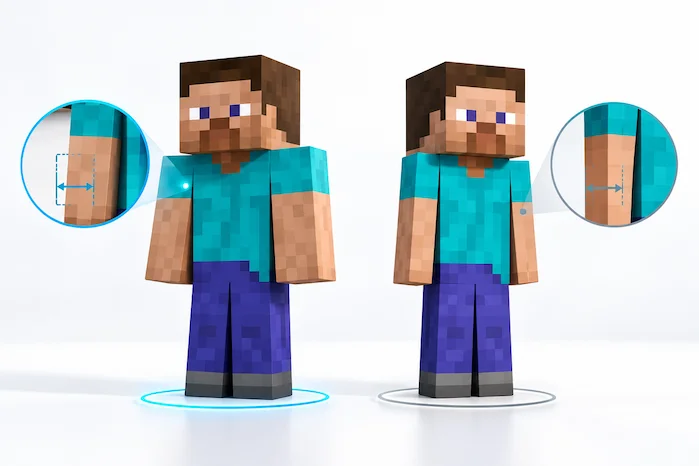
Minecraft supports different player models. The classic model has wider arms, while the slim model uses thinner arms. A skin made for one model may look incorrect when used with another. Check the model selected by the skin before applying it. If the arms or clothing look strange, the model may be the reason. Selecting the correct model can fix the appearance without changing the skin itself.
How to Fix a Skin That Looks Wrong
If a skin looks different from the original image, first check the character model. Next, confirm that the skin uses the correct layout. A damaged or incorrectly edited image can also cause visual problems. Try another known-working skin to compare the result. If the second skin works, the original file may be the problem. This simple test can help separate a file issue from a launcher issue.
TLauncher Skin File Problems
A skin file can fail when it uses the wrong image format, layout, or model. Make sure the file is a valid Minecraft skin image before using it. Avoid files that have been renamed without checking their actual format. If one file fails while another works, compare their properties. Testing a known-working skin is often faster than changing many launcher settings at once.
TLauncher Skins and Privacy
Be careful when downloading skins from websites that ask for account information. A skin image should not require your Minecraft password. Avoid pages that ask you to install unknown software to get a skin. Download image files from sources you can verify and scan unexpected files before opening them. Your skin choice is separate from your account password, so there is no normal reason to give a skin website your private login details.
TLauncher Skin Backup
Keeping a backup of your favorite skins can save time when changing computers or reinstalling Minecraft. Store the original image files in a folder that you can access later. Give each file a clear name so you know which design it contains. If you use different character models, keep those files organized as well. A backup also makes it easier to restore a skin after changing your setup.
Common TLauncher Skin Problems
Common problems include a skin not loading, an old skin appearing, incorrect arm size, missing skin details, or a skin appearing only in certain environments. Start with simple checks. Confirm the selected skin, account, model, and Minecraft version. Then restart the launcher and game. If the issue only happens on a server, test the same skin in another environment. This process can help identify the source without changing unrelated settings.
Frequently Asked Questions
How do I use skin in TLauncher?
Select a supported skin in the launcher skin settings, save the change, and start the matching Minecraft setup. Restart the game if the new design does not appear.
How do I change skin in TLauncher?
Open the available skin settings, choose a compatible design, save it, and launch Minecraft with the same account and profile.
Why is my skin not showing?
Check the selected account, skin settings, image format, character model, and Minecraft version. A multiplayer server can also affect skin visibility.
What is the TLauncher skin system?
The TLauncher skin system is a way to select and display a custom Minecraft character appearance within a compatible launcher setup.
Can I use custom Minecraft skins?
Custom Minecraft skins can be used when the selected launcher and account setup supports them. The image must also follow the required skin format.
Why are TLauncher skins not working?
Check the skin file, model, account, launcher settings, and Minecraft version. Restarting the launcher can also help after changing a skin.
Can skins work on Minecraft servers?
Skins can work in multiplayer, but server settings and account systems may affect how the design appears to you and other players.
Can I use different skin models?
Yes, Minecraft supports different player models. Make sure the skin matches the model you select.
Conclusion
TLauncher Skins provide a simple way to change the appearance of a Minecraft character. A working skin depends on the image format, character model, account, Minecraft version, and launcher setup. If a skin does not appear, start with these basic checks before changing other settings. Testing another skin can also help find the source of the problem. Keeping backup copies of your favorite designs makes future changes easier.