
TLauncher Servers are Minecraft multiplayer servers that players may access through a compatible Minecraft setup. A server lets players join shared worlds, play different game modes, and interact with other users. However, the launcher alone does not decide whether a server will work. The Minecraft version, server settings, account setup, mods, and network connection can all affect access. This guide explains how Minecraft servers work, how to join them, how server IPs work, and how to troubleshoot common connection problems.
What Are TLauncher Servers?
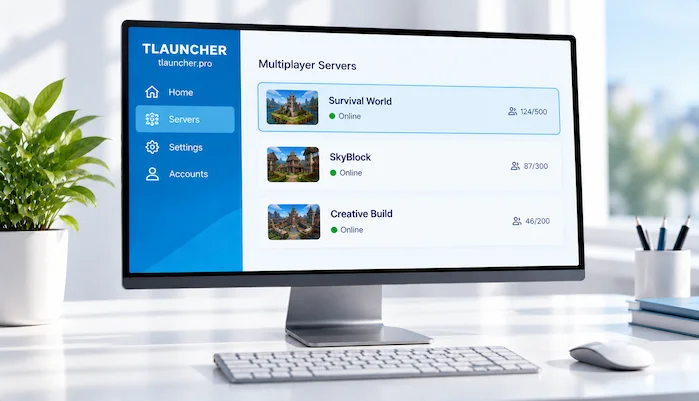
TLauncher Servers are Minecraft servers that can be accessed through a compatible game setup. A server can offer survival, creative, minigames, PvP, BedWars, SMP, or other game modes. Each server has its own address, rules, version requirements, and settings. Before joining, check which Minecraft version the server supports. Some servers may also require specific mods or account settings.
How Do Minecraft Servers Work?
A Minecraft server hosts a shared game world that multiple players can access. The server manages players, worlds, game rules, and other online features. Your Minecraft client connects to the server through its address and port. The server then checks whether your game setup can connect. If the client and server use incompatible versions or settings, the connection may fail. A stable internet connection is also needed for online play.
For a broader guide to the launcher and its features, visit our TLauncher guide.
How to Join TLauncher Servers
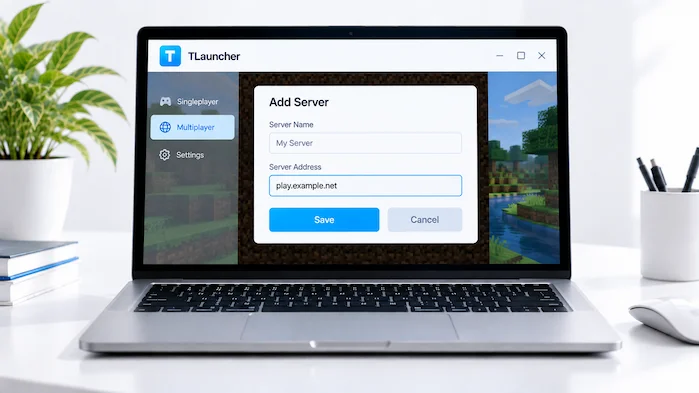
To join a server, open Minecraft with a version supported by that server. Go to the multiplayer section and choose the option to add a server. Enter the server address in the required field. You can give the server any name that helps you identify it. Save the entry and select it from your multiplayer list. If the server is online and your setup meets its requirements, you can try connecting.
If you still need to install the launcher, follow our TLauncher Download guide for the setup steps.
TLauncher Server IP
A TLauncher server IP is the address used to connect to a Minecraft server. It can contain a domain name or a numeric address. Some servers also use a separate port when one is required. Enter the address exactly as provided by the server owner. A single wrong character can prevent the connection. Do not add extra spaces or change the address unless the server instructions tell you to do so.
How to Add a Server
Open Minecraft and enter the multiplayer menu. Select the option for adding a new server. Enter a name in the server name field and place the correct address in the server address field. Save the entry and look for it in your multiplayer list. Minecraft may show the server status before you join. If it does not respond, check the address, game version, server status, and internet connection.
TLauncher Minecraft Servers and Version Compatibility
Minecraft version compatibility is important when joining an online server. A server may support one version, several versions, or a specific range. Your client must use a version accepted by that server. If you select an unsupported version, Minecraft may show a version mismatch error. Always check the server information before changing your game setup. Using the correct version can solve many connection problems.
TLauncher SMP Servers
TLauncher SMP servers focus on survival multiplayer gameplay. Players can build bases, gather resources, explore worlds, trade, and interact with other players. Each SMP server can have its own rules and features. Some use a standard survival setup, while others add plugins, custom systems, or special rules. Check the server description before joining so you understand what gameplay it provides.
TLauncher BedWars Servers
TLauncher BedWars servers provide a team-based Minecraft minigame where players protect their beds while trying to destroy the beds of other teams. Server versions and account requirements can vary. Some servers may use custom maps, matchmaking, or other features. Check the server’s current requirements before trying to connect. If BedWars does not load, confirm that the selected Minecraft version is supported.
TLauncher Multiplayer
TLauncher multiplayer depends on the server and Minecraft setup being used. A player needs a compatible game version and a working network connection. The server may also require specific settings, mods, or account access. Multiplayer problems are not always caused by the launcher. The server itself may be offline or temporarily unavailable. Check both sides before changing your installation.
Minecraft Servers for TLauncher
Minecraft servers for TLauncher can use different rules and connection requirements. Some servers may allow a wide range of Minecraft versions, while others require one specific version. Some may also require mods or additional files. Before joining, read the server information and check its address. Avoid downloading unknown files from random server pages. Only install additional software or mods when you understand what they do.
TLauncher Server Rules
Every multiplayer server can have its own rules. These may cover chat behavior, building, PvP, trading, mods, and account use. Read the rules before joining. Breaking server rules can lead to a kick or ban from that server. Rules can also change over time, so check the current server information when you join. Following the server’s instructions makes it easier to understand how the community works.
TLauncher Server List
A server list can help players find multiplayer communities and game modes. However, not every listed server will remain online or support the same Minecraft version. Check the server’s current information before trying to connect. Look for its address, supported version, game modes, and account requirements. Avoid assuming that an old listing is still accurate. Server status and requirements can change.
TLauncher Server Connection Problems
Connection problems can have several causes. The server may be offline, the address may be incorrect, or the Minecraft version may not match. Your internet connection can also cause timeouts. Mods can create another compatibility issue. Start with the simplest checks. Confirm the server address and version first. Then test your internet connection. If the problem affects only one server, the issue may be related to that server.
TLauncher Server Not Working
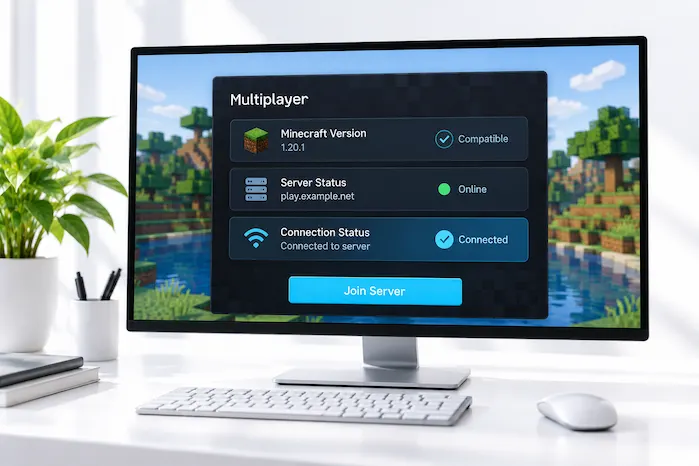
When a TLauncher server is not working, first check whether other servers are available. If other servers work, the problem may be limited to the first server. Check its address and status. You should also confirm the required Minecraft version. If no servers work, test your internet connection and game setup. Restarting Minecraft can also clear temporary connection issues.
Server Version Mismatch
A version mismatch occurs when the Minecraft client and server do not support the same version. The server may require an older or newer release than the one selected in your launcher. Read the error message and check the server requirements. Then select a compatible Minecraft version. Avoid changing several settings at once. Testing the correct version first makes troubleshooting easier.
Server Timeout
A timeout can happen when Minecraft cannot establish or maintain a connection with the server. A weak internet connection can cause this problem. The server may also be busy, offline, or experiencing network issues. Check whether other online services are working. Then try the server again after a short period. If only one server times out, compare its status with another server.
Cannot Connect to Server
If Minecraft says it cannot connect to the server, check the server address first. Make sure you entered it correctly. Next, check the Minecraft version and server status. If the server requires a specific mod setup, confirm that the required files are installed. Firewall or network settings can also block connections. Change one setting at a time so you can identify what fixes the problem.
TLauncher Servers and Mods
Some servers use mods or modpacks that must also be installed on the player’s computer. The server may provide a list of required files. Match the Minecraft version, mod loader, and mod versions before connecting. A missing or incorrect mod can cause a connection error. If the server does not require mods, avoid adding extra files unless you need them. Unnecessary modifications can create compatibility problems.
TLauncher Servers and Account Requirements
Some Minecraft servers have account requirements that affect access. A server may require a particular type of account or authentication method. Check the server’s rules before attempting to join. Do not enter your account password into an unknown website simply because it claims to provide server access. Keep account details private and use trusted services for authentication.
TLauncher Servers and Internet Connection
Online Minecraft requires a stable network connection. High latency can make movement feel slow or cause players to disconnect. Packet loss can also affect multiplayer sessions. If the connection is unstable, restart your router or test another network when possible. You can also compare your experience on different servers. If only one server has connection problems, the server’s network may be part of the issue.
Server Ping and Lag
Server ping measures the time needed for data to travel between your computer and the server. Higher latency can make multiplayer feel less responsive. Server location, network quality, and traffic can all affect latency. A distant server may have higher ping than a nearby one. If you experience lag, compare different servers and check whether the problem affects only one location.
TLauncher Servers and Server Safety
Be careful when choosing online Minecraft servers. A server may ask players to visit external websites, download files, or enter account details. Do not install unknown programs simply to join a server. Check server information before downloading additional files. Keep security software active and avoid sharing private account information. Multiplayer safety involves both the server and the files you choose to install.
Common TLauncher Server Problems
Common problems include incorrect server addresses, version mismatches, timeouts, mod conflicts, authentication errors, and unstable connections. Start by checking the server address and Minecraft version. Then check the server status and your internet connection. If the server requires mods, compare the installed files with its requirements. This step-by-step approach can help identify the cause without changing the entire Minecraft setup.
Frequently Asked Questions
What are TLauncher Servers?
TLauncher Servers are Minecraft multiplayer servers that players can access through a compatible Minecraft setup, subject to the server’s version and access requirements.
How do I join TLauncher Servers?
Open Minecraft multiplayer, add the server address, save the entry, and select the server. Your Minecraft version must match the server requirements.
What is a TLauncher server IP?
A TLauncher server IP is the address used to connect Minecraft to a specific multiplayer server. Enter it exactly as provided.
What are TLauncher SMP servers?
TLauncher SMP servers are multiplayer survival servers where players can build, explore, collect resources, and interact within a shared world.
Can I play BedWars on TLauncher?
BedWars may be available on compatible Minecraft servers. Check the server version and account requirements before trying to join.
Why is my TLauncher server not working?
Check the server address, Minecraft version, server status, internet connection, and any required mods. One of these may be causing the connection problem.
Why does my server show a version error?
The selected Minecraft version may not match the version supported by the server. Select a compatible version and try again.
Can mods affect server connections?
Yes. A server may require specific mods, while unsupported or extra mods can create compatibility problems.
Conclusion
TLauncher Servers can provide access to survival worlds, SMP communities, BedWars, and other multiplayer modes. A successful connection depends on the server address, Minecraft version, account setup, mods, and network connection. Check the server requirements before joining and avoid unknown downloads or requests for private account details. When a connection fails, start with the server address and version, then check the network and installed files.